Intro and setup en
XView helps you quickly diagnose whether a product is behaving abnormally.
Chrome only
Note: Only Chrome is supported. Other browsers may not work due to browser security policies (for example, an https page may block ws:// connections).
IPV4 only
To facilitate use, XView only supports IPV4 addresses. Simply put, you cannot use a cable to directly connect the robot and PC. They must both be connected to a router. (When using API control, IPV6 is supported, meaning you can directly connect the robot and PC without a switch or router.)
For reference only
Due to browser performance limitations, XView may experience stuttering on some machines and may not achieve the highest control frequency. This is normal, and performance requirements will be significantly reduced when using API control.
Additionally, XView is intended as a quick diagnostic tool for checking if a product is functioning normally. XView only provides the most basic control methods (for example, moving or rotating the base in one direction; viewing the current pose of the manipulator). Please refer to the API control section for advanced control functionality.
Prerequisites
- Obtain the robot's IP address. Please refer to the controller documentation to obtain the controller's IP address.
- Open XView.
- Follow the browser prompt to allow the insecure connection.
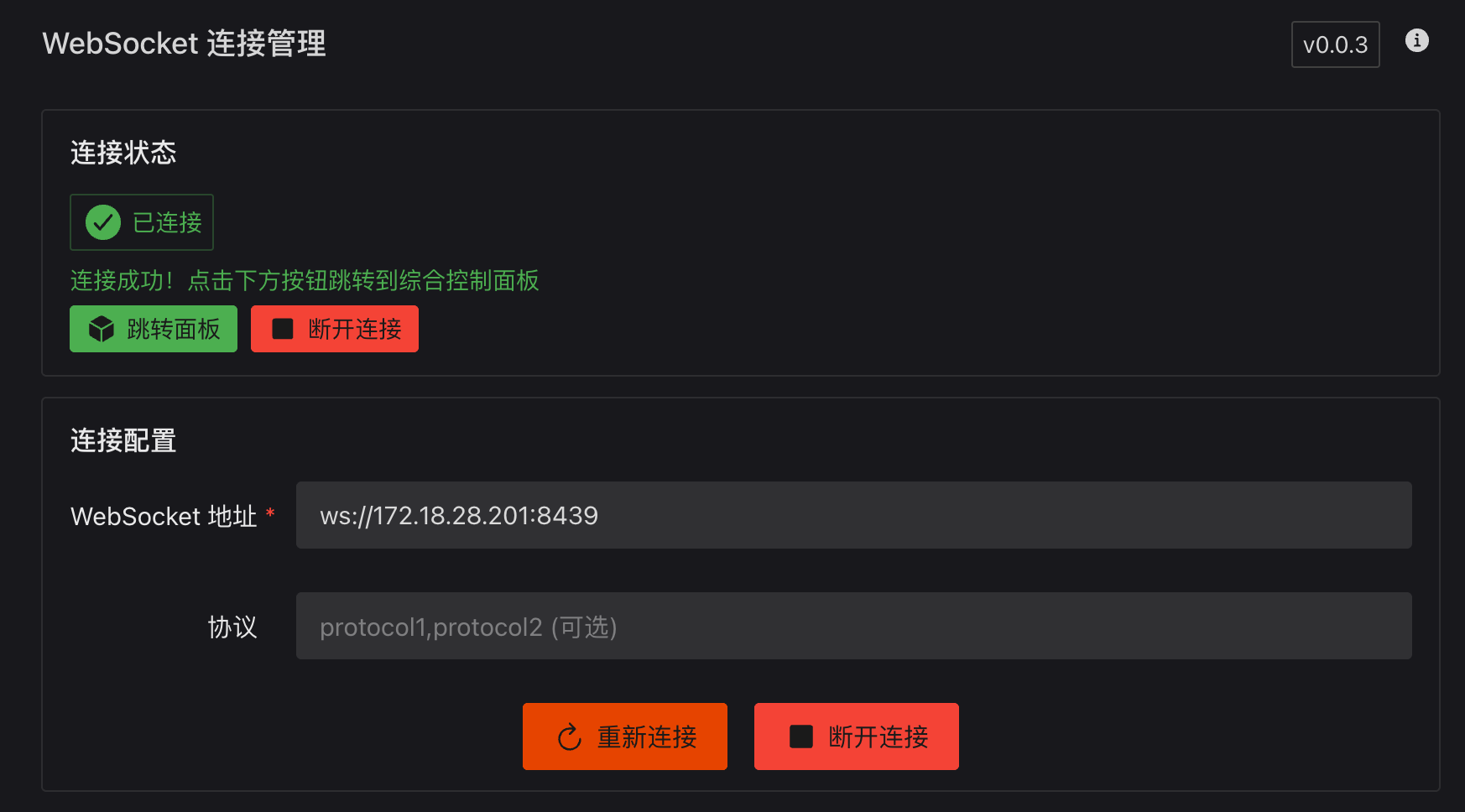
- Enter the IP address and port, for example
ws://192.168.1.100:8439. (If the product page does not specify a port, the default is 8439.) (The language can be switched in the upper right corner)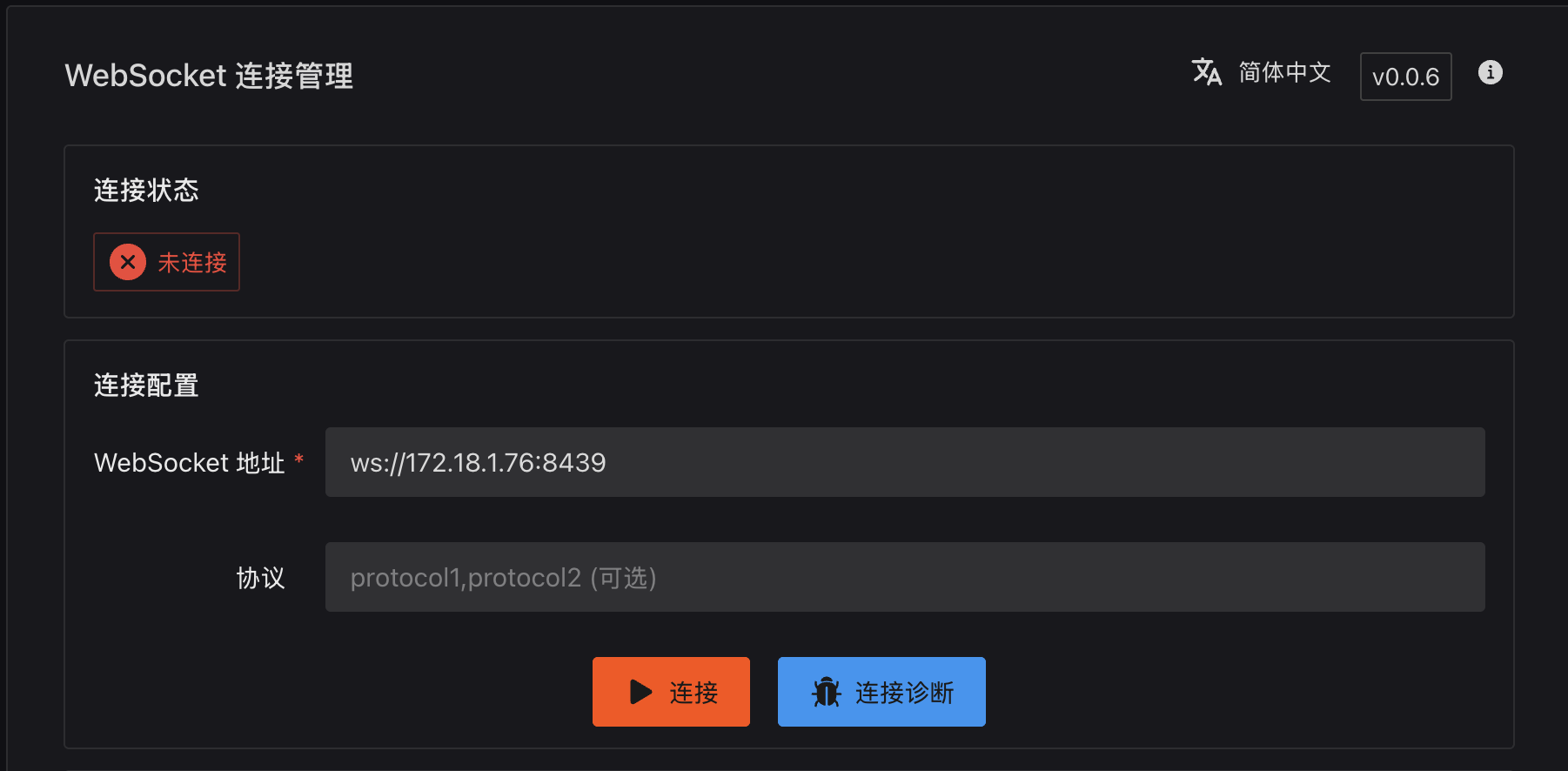
- Click
Connect, then clickGo to Panel.